Author: Jack Williams

  • Week 6 Reflection Journal

    After watching “Create a Professional WordPress Website! | Twenty Twenty-Five Theme Tutorial,” I plan to use two key techniques: block patterns and global styles. The video showed how easily pre-built patterns can add hero sections, grids, and testimonials without coding, so I will insert these through the Site Editor (Appearance → Editor → Patterns) and customize the text and images for my brand. I will also set up global typography and color styles early on to keep my layout consistent. For example, I will use Montserrat for headings, Open Sans for body text, and a navy-teal-gray color palette through Styles → Typography and Styles → Colors. These design choices will make my site look cohesive, professional, and visually appealing across every page.

    One confusing part of the tutorial was understanding how templates and design variations interact in the Site Editor, mainly when changes affect multiple pages. To solve this, I plan to test edits on a staging site and note which templates apply to which pages. The tutorial also emphasized user experience (UX) by showing how clear call-to-actions and proper spacing guide visitors effectively. I will make sure my CTAs, such as “Contact Me” or “Get Started,” are visible above the fold, and I will preview layouts on mobile and tablet to confirm that text and buttons display cleanly. This focus on responsive design and accessibility, such as adding alt text and ensuring good color contrast, will help all users navigate my site easily.

    Finally, I learned how the new block-based Site Editor in Twenty Twenty-Five changes development by replacing PHP templates with drag-and-drop flexibility. This approach will let me edit headers, footers, and layouts visually without custom coding. The tutorial also introduced simple SEO strategies, such as writing keyword-rich titles, adding alt text, and linking between pages. I will apply these to help search engines understand my content and increase traffic. Overall, the video taught me how to combine design patterns, accessibility, and marketing strategies into a streamlined, professional WordPress site.


  • Homework 3 – The Media Library

    relaxing cinematic classical sound
    My favorite gaming YouTuber”Spoonkid”

    Before

    Cool landscape before editing

    After

    Cool landscape after editing
    Cropped, Flipped, and rotated
    fighter jet resized
    The original file was 16,015 KB, so I resized it to 1920px wide in Paint before uploading. This helped it load faster without losing much quality.

  • Lab 3 – Images

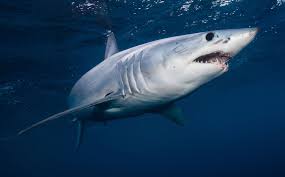
    sharkimage
    cool shark picture
  • Week 2 Reflection Journal

    This week, we experimented with WordPress, including creating new pages and posts, organizing them into different categories, such as for my Reflection Journals, working on the dashboard, rearranging content, and exploring the Tools page. At first, I kept getting Pages and Posts mixed up, so when I tried to categorize my pages, I couldn’t because I didn’t have any since they were all in my posts. It was a simple fix. I just deleted those posts and transferred the stuff on them into the pages. I gained a better understanding of what pages and posts are and how they differ from each other. Basically, pages categorize the posts.

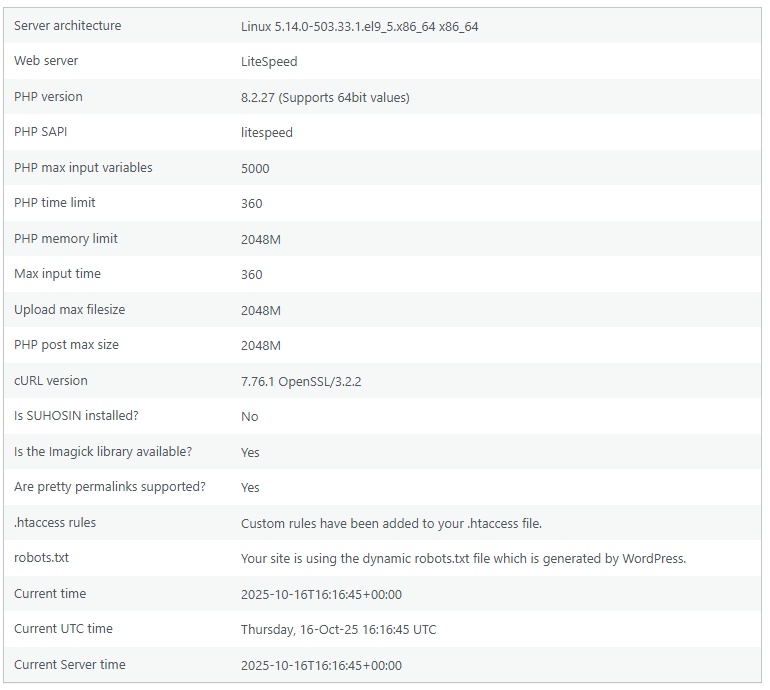
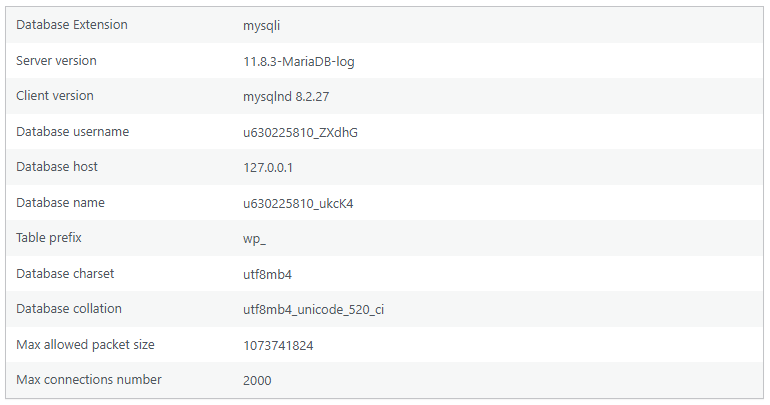
    The database and WordPress installation on my web hosting service work closely together to ensure my website functions correctly. The WordPress files on my hosting account control how the site looks and runs, while the database stores all the content and settings. Whenever I make changes to my site, such as adding a new post, creating a page, or updating the site title, WordPress saves that information in the database instead of in the website files. They work together through a connection defined in the wp-config.php file, which contains the database name, username, and password. When someone visits my site, WordPress uses this connection to pull data from the database and display it using my theme. The database is important because it stores all dynamic content, user accounts, comments, and site configurations. Without it, WordPress wouldn’t be able to load posts, remember settings, or let users log in.

  • Week 1 Reflection Journal

    Installing WordPress Remotely

    The preparation process for installing WordPress remotely using Hostinger’s auto-install feature was surprisingly straightforward. Before this assignment, I had a basic understanding of FTP and MySQL databases, but hadn’t used them much in a real-world setting. FTP is a method used to transfer files between a local computer and a web server over the Internet. It’s what allows developers to upload, edit, and manage website files remotely. Even though Hostinger’s installer handled most of the setup automatically, I took the time to review how FTP connects to a server and how a MySQL database stores WordPress content. This process helped me understand the connection between the files that make up a website and the database that powers its content. The most challenging part was grasping how these systems communicate, but seeing it all come together in a live environment made the technical side of web hosting much clearer.

    For the installation itself, Hostinger’s auto-installer made deploying WordPress to a live server very smooth. I selected the domain, filled in the site title, admin username, and password, and the installer automatically created the necessary MySQL database. Once completed, I logged into the WordPress dashboard and verified that everything was working correctly. There were no significant difficulties, as the auto-install handled most of the configuration. Working locally feels more controlled because you can experiment freely, whereas managing WordPress on a live server requires more caution, as changes immediately affect the public site. Overall, this assignment helped me better understand how local development transitions into a live production environment and gave me confidence in using web hosting tools like Hostinger to deploy real websites.

  • Lab Activity – Create Pages/Posts

    After using WordPress on Hostinger, I discovered how simple it is to create and design a blog post using the Block Editor. Each block lets you control one piece of content, such as text, images, or columns. I appreciate that I can rearrange sections easily without breaking anything, which makes editing and organizing my post much faster.

    While exploring, I used several different blocks like Headings, Paragraphs, Images, Tables, Columns, and Galleries. Each block had its own purpose. For example, I used a Heading block to make titles stand out and a Gallery block to show screenshots of my site. It helped me understand how flexible the Block Editor really is compared to traditional text editors.

    I also experimented with Patterns like the Fullwidth Hero Image and the Call to Action Pricing Grid. These patterns made my post look professional with minimal effort. I liked that I could replace the placeholder text and images to make it my own, instead of starting from scratch.

    The overall process of writing and designing in WordPress felt user-friendly. At first, I was unsure about how to use columns and spacing, but after a few attempts, it started to make sense. I learned that previewing your post as you build helps you spot layout issues early.

    After completing this assignment, I feel much more confident about managing WordPress content. My only question is how to customize the default colors and fonts in the Twenty Twenty-Five theme so that all posts match the same style. This activity provided me with a better understanding of what it’s like to work with real website content, as opposed to just plain text.

    Tryingout
    differentblocks

    database info

    Photo of a field full of flowers, a blue sky and a tree.

    Stories

    sharks

  • Hello world!

    Welcome to WordPress. This is your first post. Edit or delete it, then start writing!